Create rules
The principle
A rule is a sentence: if these conditions are true, then do these actions.
It is the only mechanism that makes your installation react. Without a rule, a switch turns nothing on: both devices exist, but nothing links them.
┌──────────────┐        ┌──────────────┐
│  CONDITIONS  │  ───▶  │   ACTIONS    │
│  if true...  │        │  ...then     │
└──────────────┘        └──────────────┘
Creating a rule
Click the + button above the rule list, then give it a name and a type — the type only serves to sort your rules, it has no effect on how they work.
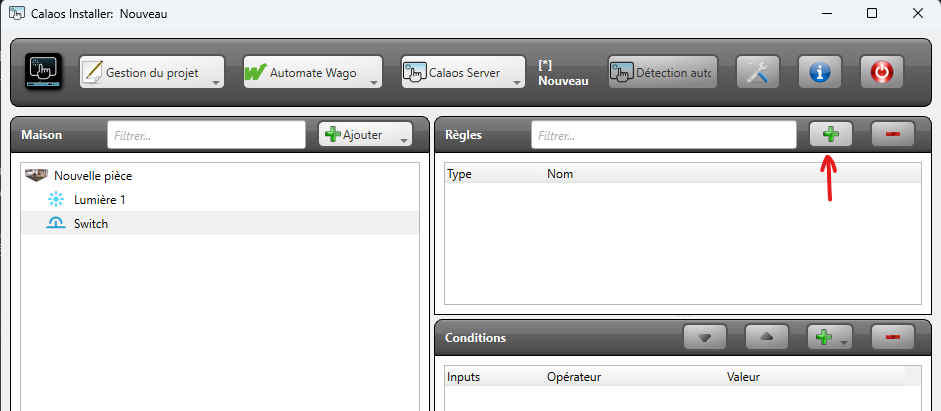
Then drag and drop the devices from the tree: the switch into the conditions area, the lamp into the actions area.
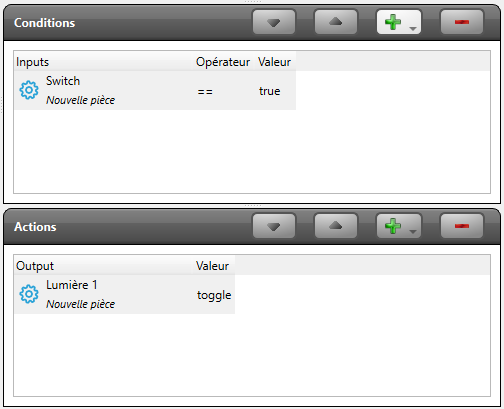
You have just created a toggle switch: pressing the switch flips the lamp.
Name your rules by what they do, not by the devices involved. “Switch the garage off after 5 minutes” reads effortlessly in two years’ time; “Rule 12” or “Garage” says nothing.
Conditions
A condition applies to the state of an IO. When several conditions are present, all of them must be true for the actions to run.
To compare a value, six operators are available:
| Operator | Meaning |
|---|---|
== | is equal to |
!= | is different from |
> | is greater than |
>= | is greater than or equal to |
< | is less than |
<= | is less than or equal to |
A condition on a temperature reads “Living room sensor < 19”.
Two special conditions complete the comparisons:
The start condition is true once, when the server starts. It is used to put the installation back into a known state after a restart: restoring a mode, switching off what should be off.
The script condition evaluates a piece of Lua code, for cases a comparison cannot express — see LUA Scripting.
Actions
An action acts on an IO or triggers something else. Several types coexist:
| Type | Effect |
|---|---|
| Standard | Changes the state of an IO: switch on, switch off, open, write a value |
| Sends a message | |
| Notification | Sends a notification to phones |
| Script | Runs Lua code |
| Touchscreen | Acts on the local display |
The actions of a rule run in the order they appear.
Sending emails requires the sending server to be configured first: see Email.
Combining with the rest
Rules come into their own when they build on the other objects of this chapter.
With a time range — add it as a condition, and the automation only applies at night, or only on weekdays. See Time scheduling.
With a scenario — put it as an action, and your time rule fits on one line instead of fifteen. See Scenario.
With an internal variable — remember a state between two triggers, to stop a rule repeating itself. See Internal Variable.
A few classic setups
Switch off after a delay — one rule starts a timer when the light comes on; another switches the light off when the timer expires.
Motion detector, at night only — conditions: the detector turns true and the “night” time range is active. Action: switch on.
Restore state at startup — start condition, actions: restore the modes and switch off what should be off.
Alert — condition: the freezer sensor goes above a threshold. Actions: notification and email.
Common pitfalls
The rule that loops. If a rule changes an IO that appears in its own conditions, it can call itself indefinitely. Use an internal variable to remember that the action has already happened.
Conditions that are too broad. Several rules acting on the same lamp end up contradicting each other. First check whether an existing rule should be extended rather than a new one added.
Confusing “switch on” and “toggle”. A switch in the conditions of a rule that switches on will leave the light on at the second press. For a toggle switch, toggling is what you want.
Testing
Rules only apply once the configuration has been sent to the server — see Upload the project.
If a rule does not behave as expected, the server’s event log shows state changes in order: see Logs.