Waveshare ESP32-P4 86 Panel
Overview
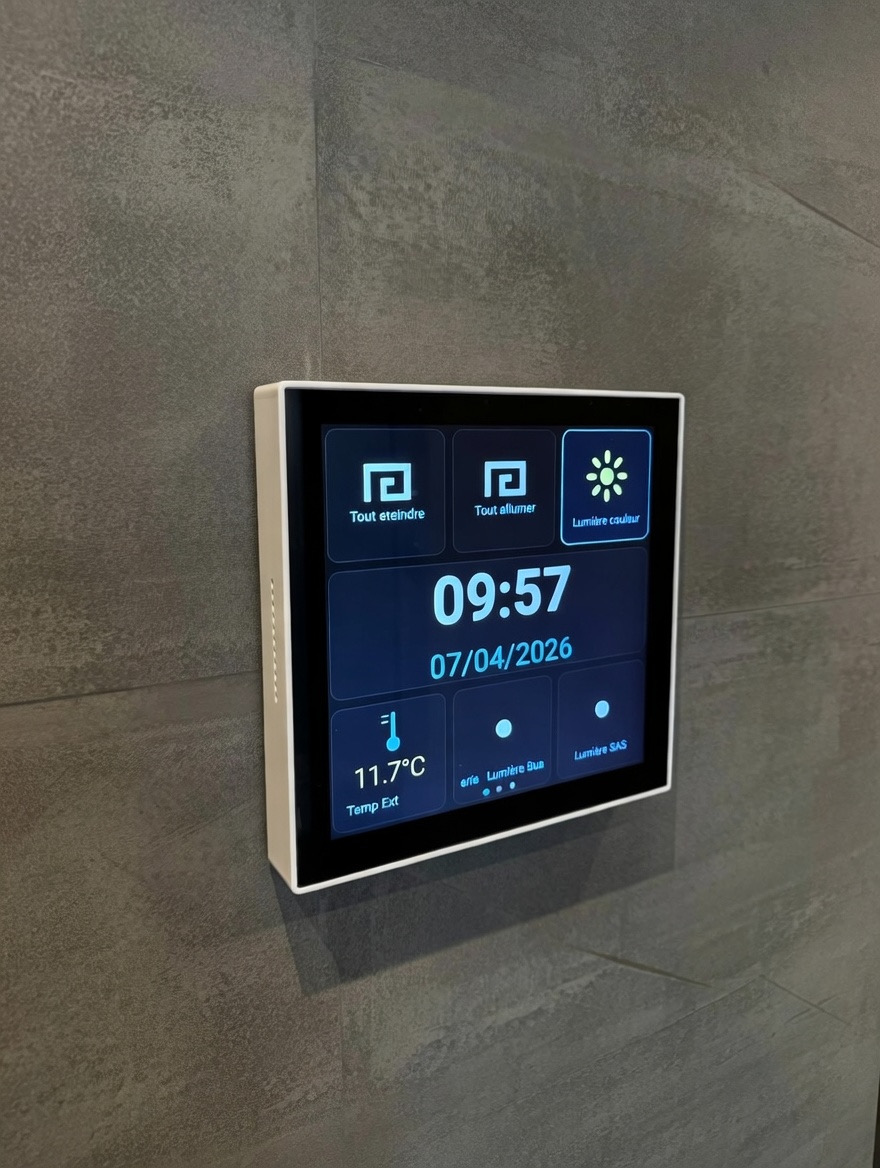
The Waveshare ESP32-P4 Smart 86 Box is a touch wall panel in the standard 86 mm form factor, designed to fit directly into standard wall-mount back boxes. It features a 4-inch IPS touch display (720 × 720 pixels) powered by the high-performance ESP32-P4 microcontroller.
You can purchase it directly from the Waveshare website (the Ethernet + 2-channel relay version is recommended for Calaos): 👉 Waveshare ESP32-P4 Smart 86 Box — Ethernet + 2ch Relay version
Key Features
- 86 mm form factor: fits into standard 86-type wall back boxes (back box not included, minimum recommended depth: 33 mm)
- Power supply: DC 6 V to 30 V via screw terminal
- Network: Wi-Fi or 100 Mbps Ethernet (RJ45 port), your choice
- 2 built-in relays: 10 A / 230 V AC with optocoupler isolation — usable directly as outputs in Calaos (lighting, etc.)
- Display: 4-inch IPS, 720 × 720 px, 5-point capacitive touch, 170° viewing angle
- Microcontroller: ESP32-P4 RISC-V dual-core, 32 MB Flash, 32 MB PSRAM
Flashing the Calaos Firmware
Before first use, the Calaos firmware must be flashed onto the board via the USB port. This is done from Calaos Installer:
- Connect the board to your computer using the USB-C cable (USB TO UART port)
- Open Calaos Installer and go to the Remote UI firmware flash section (Menu Tools > Flash Remote UI Device)
- Select the serial port corresponding to the board and start the flash
- Once flashing is complete, disconnect the USB and power the board via DC
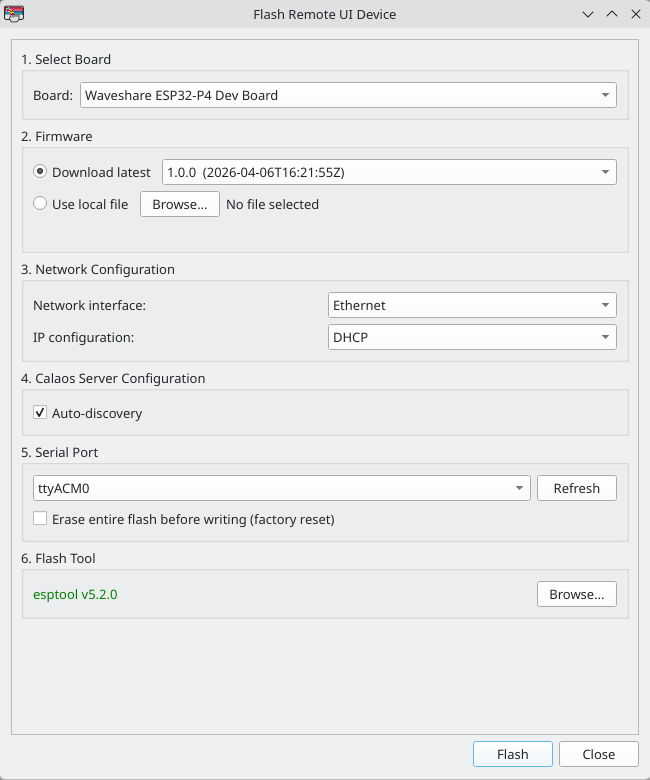
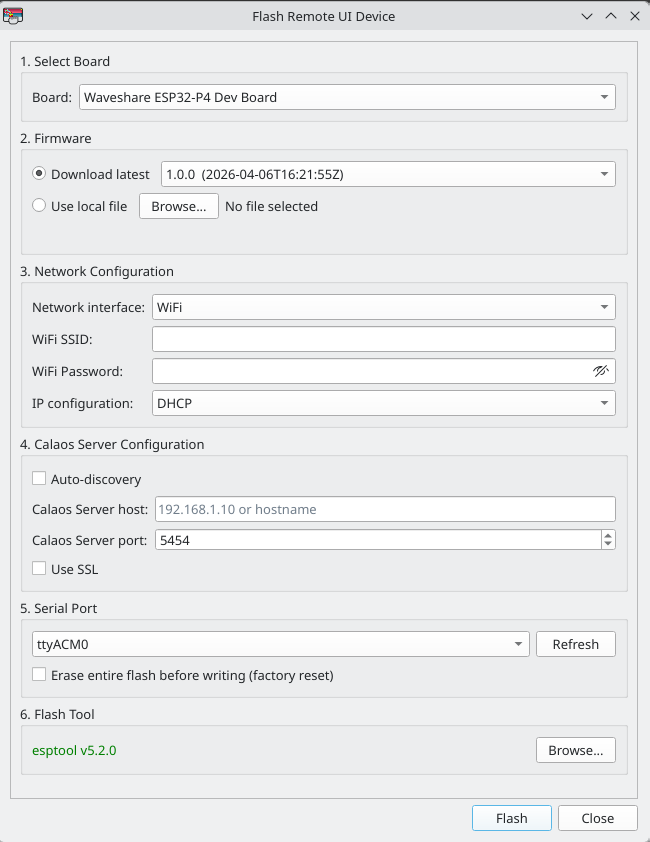
The flash tool lets you configure several parameters that will be embedded directly into the firmware:
- Network: choose between Wi-Fi (SSID + password) or Ethernet, with DHCP or static IP address
- Calaos Server: automatic discovery via mDNS (
calaos_serveron the local network), or manually specified IP/hostname and port, with SSL option - Full erase (Erase entire flash before writing): resets the board to factory state and generates a new pairing code — useful if you want to reassign the board to a different server
Manual reflashing is only needed once. Subsequent updates are handled via OTA (see OTA Updates section).
Pairing Process
Once the board is powered and the Calaos firmware is installed, here is what happens:
Network connection — The board automatically connects to the network (Wi-Fi or Ethernet depending on configuration).
Time synchronization — The board syncs with an NTP server (Internet access required). This step is mandatory: Calaos’s secure authentication relies on the system clock. If the time is incorrect, the board will not be able to connect to the server.
Server discovery — The board attempts to automatically detect
calaos_serveron the local network, or connects to the manually configured server address.Pairing code generation — The board generates and displays a unique pairing code that must be entered in Calaos Installer.
Code verification:
- If the code is already present in Calaos Server (added via Calaos Installer), the board connects immediately in a secure manner.
- Otherwise, the screen displays a prompt asking you to add the code in Calaos Installer before retrying.
Interface configuration — Once the board is paired, you can configure its interface directly from Calaos Installer.
Configuration in Calaos Installer
Creating the Remote UI IO
To add a new Remote UI screen:
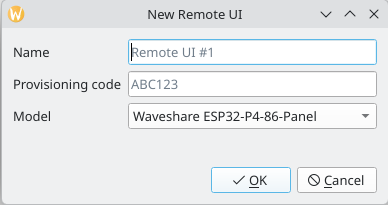
- In Calaos Installer, create a new IO of type RemoteUI
- Enter the pairing code displayed on the board’s screen
- Give it a name (e.g. “Living Room”, “Hallway”)
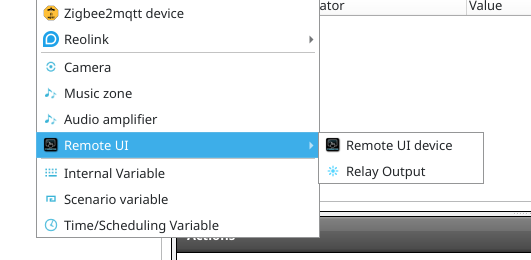
Remote UI Interface Editor
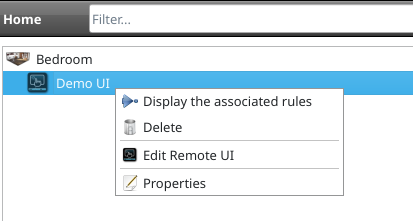
Once the IO is created, open the Remote UI editor to design the screen’s interface:
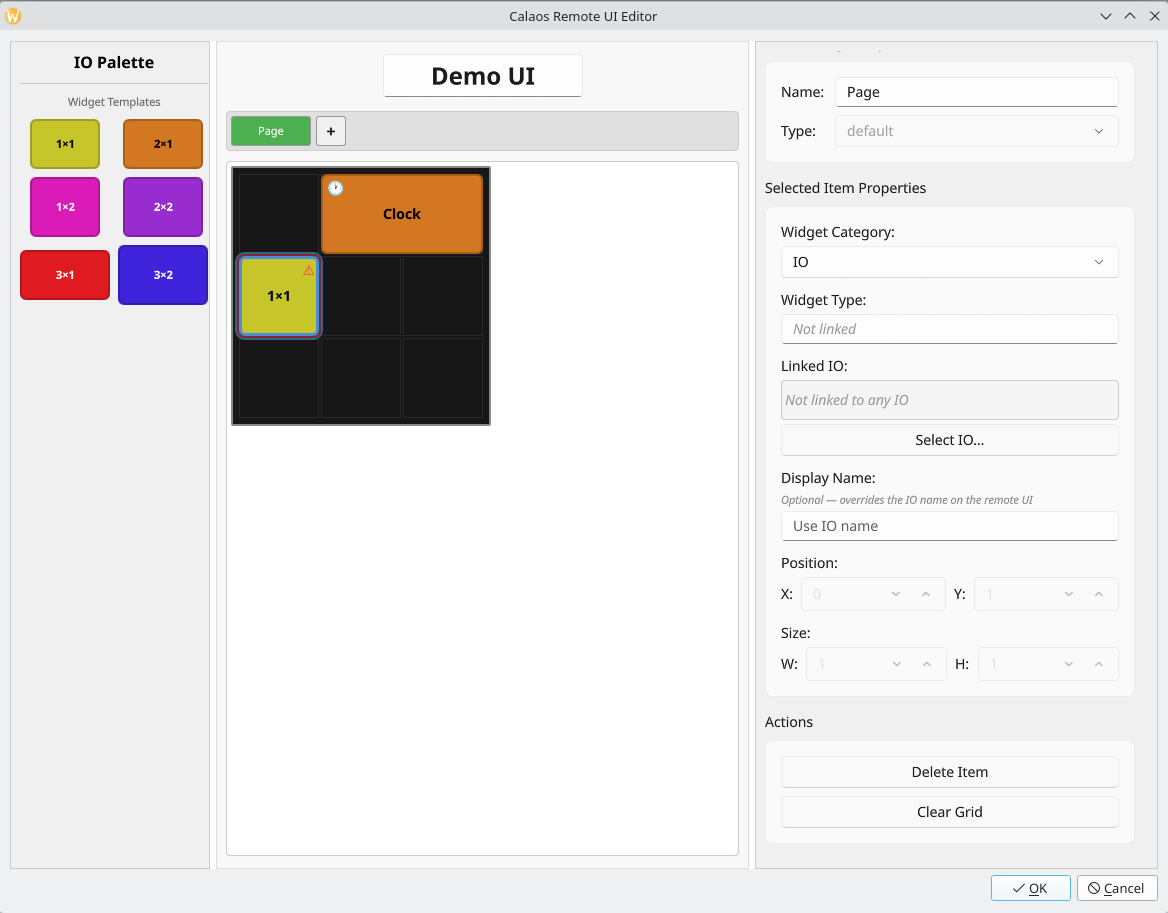
- The interface is laid out as a grid (default 3 × 3 on the Waveshare board)
- Each cell of the grid can hold a widget:
- Calaos widgets: Light, Shutter, Scenario, Temperature, etc.
- Clock widget
- You can create multiple pages and navigate between them from the screen
Screensaver
A screensaver can be configured to turn off or dim the screen after a period of inactivity, to preserve the display and reduce power consumption.
Actions from Calaos Rules
In Calaos Installer, you can use actions on a Remote UI IO within your automation rules:
| Action | Description |
|---|---|
set_brightness | Adjust the screen brightness (e.g. dim at night) |
set_page | Change the displayed page (e.g. show an “Alarm” page on alert) |
This allows, for example, automatically lowering the brightness at night based on a time schedule.
Using the Relays as Calaos Outputs
To control the 2 built-in relays from Calaos:
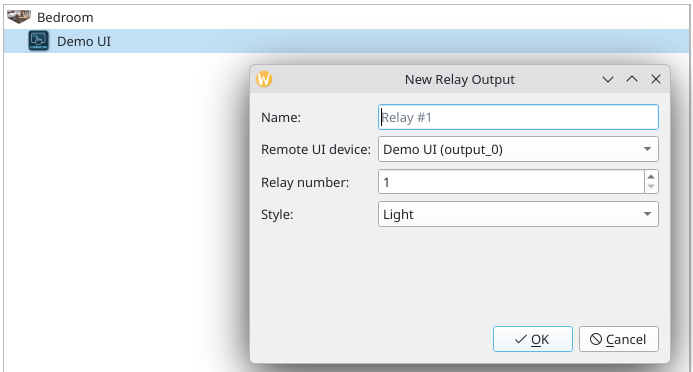
- Create a new IO of type RemoteUI / Relay Output in Calaos Installer
- Associate it with the board and the desired relay number
- This IO then behaves like a standard light output in Calaos: you can use it in rules, scenarios, and display it in your interfaces
OTA Updates
Calaos Remote UI supports OTA (Over The Air) firmware updates from Calaos Server, provided you are using Calaos OS.
When Calaos OS updates are applied, all connected Remote UI screens automatically receive the new firmware version if an update is available. No manual intervention is required.